


Have you ever upgraded your phone and felt that small, sinking panic: “Did I lose those messages?” You’re not alone. WhatsApp accumulates years of conversations, photos of milestones, voice notes, and receipts, all valuable. The good news: you don’t need risky third-party tools or hours of tinkering to move everything. This guide shows seven fail-proof, official methods to safely complete a WhatsApp data transfer, with clear steps, troubleshooting, and security notes so you won’t lose a single chat.
What you’ll get: step-by-step instructions, official tips from WhatsApp/Apple/Google, and practical fallbacks so you can pick the right method and finish without surprises. (WhatsApp Help Centre)
Table of Contents
Quick primer: what can and can’t be moved (and why)
Short version: messages, photos, videos, voice notes, and many settings can be moved using official tools. Backups live in cloud services, Google Drive for Android and iCloud for iPhone, or you can use secure direct transfer tools when moving across platforms. However, there are constraints:
- Phone number consistency: WhatsApp ties a profile to a phone number; transfers typically require verifying the same number on the new device. (WhatsApp Help Centre)
- Platform-specific cloud storage: Android uses Google Drive; iPhone uses iCloud; these are not interchangeable without cross-platform tools. (WhatsApp Help Centre)
- WhatsApp Business limitations: Some business-specific flows may not be fully supported in cross-platform transfers. Check the Business FAQ if you use Business accounts. (WhatsApp Help Centre)
If you want everything (including stickers, archived chats, groups, and media), follow the right official path below. Skipping steps or using unsupported tools risks incomplete transfers.
Same OS WhatsApp Data Transfer with Cloud Backup (Android → Android / iPhone → iPhone)
If both phones use the same operating system, the cloud backup is the simplest, most reliable route.
Android → Android (Google Drive) — Step-by-step
What you need: an old Android phone, a Google Account, Wi-Fi, same phone number. (Google Help)
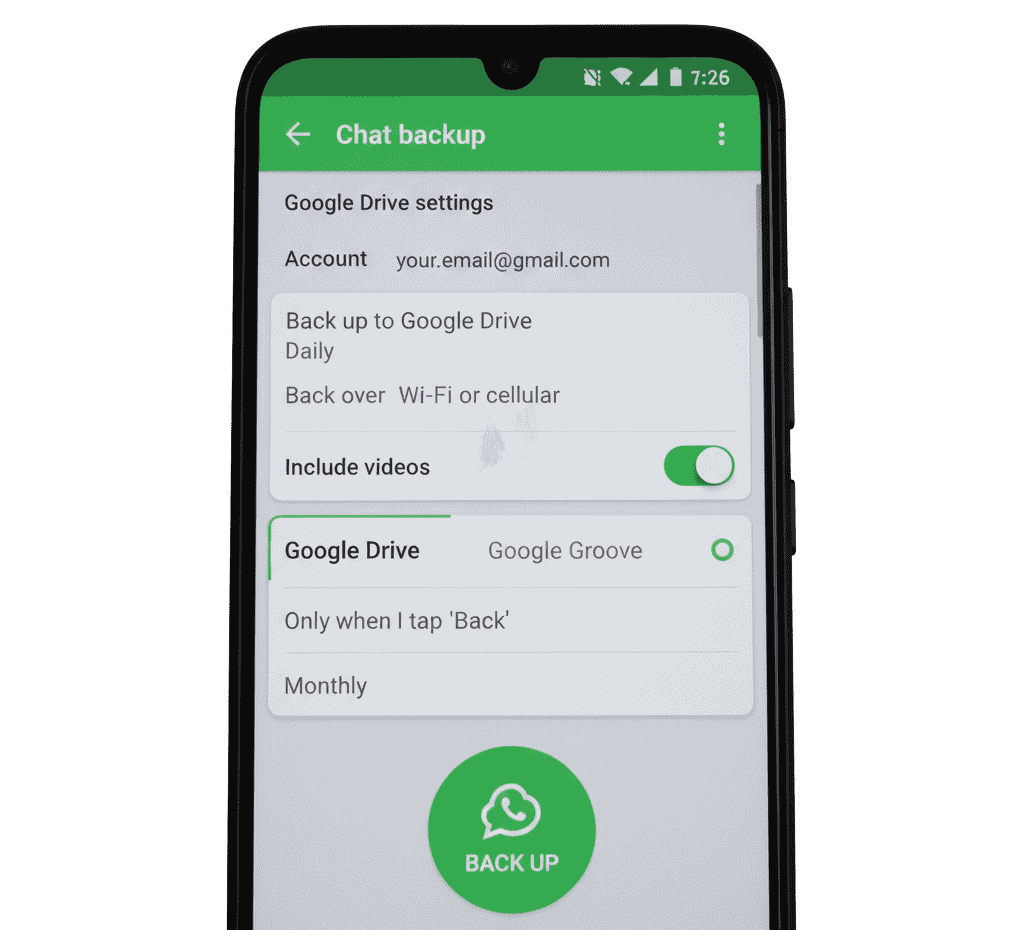
- Open WhatsApp → More options (⋮) → Settings → Chats → Chat backup.
- Confirm the Google Account shown (or add the correct one). Tap Back up to create a fresh backup. Decide whether to include videos (adds size/time). (WhatsApp Help Centre)
- On the new Android phone, sign in to the same Google Account and install WhatsApp. Verify the same phone number. WhatsApp will detect the Google Drive backup and prompt to Restore, choose it and wait for the download to complete. (Google Help)
iPhone → iPhone (iCloud) — Step-by-step
What you need: an old iPhone, an iCloud account, enough iCloud storage, the same Apple ID, and Wi-Fi. (WhatsApp Help Centre)
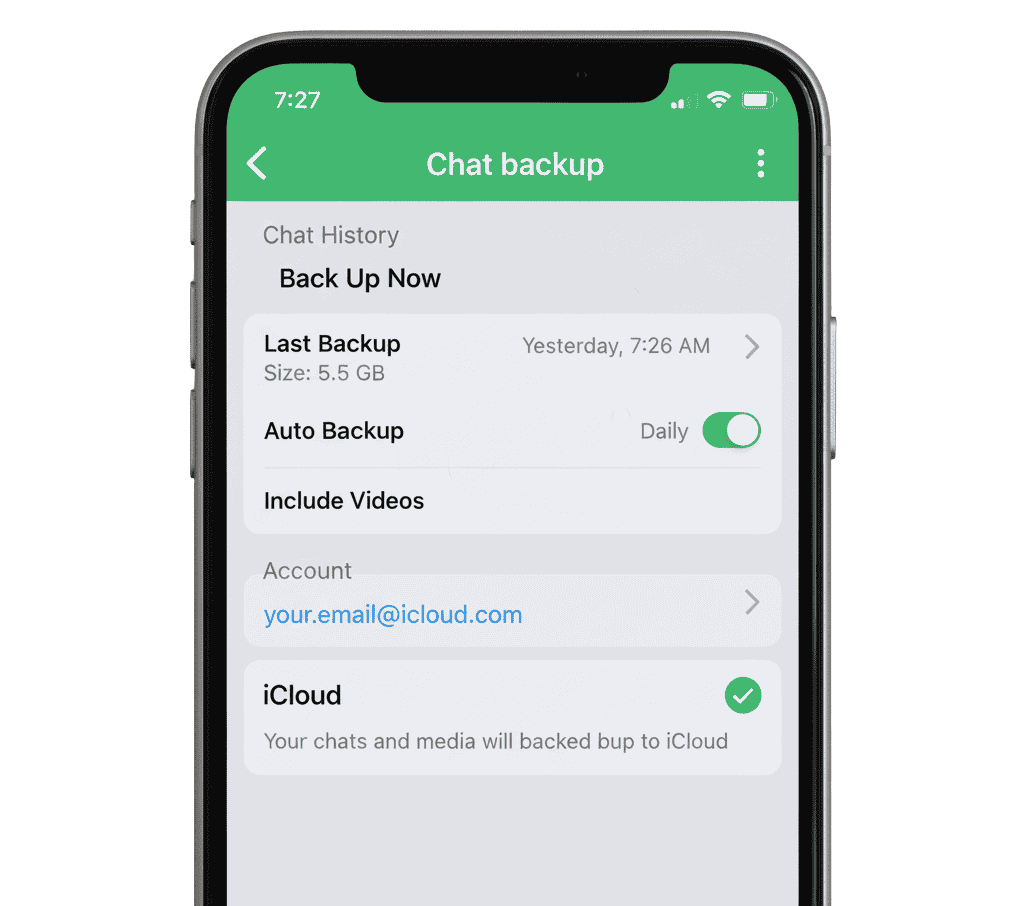
- On the old iPhone: WhatsApp → Settings → Chats → Chat Backup → Back Up Now. Confirm you’re signed in to the same iCloud account and that iCloud Drive is on.
- On the new iPhone: sign in to the same Apple ID before installing WhatsApp. Install WhatsApp and verify your phone number. When prompted, choose Restore Chat History from iCloud. Wait for the process to finish. (WhatsApp Help Centre)
End-to-end encrypted backups provide extra security
WhatsApp supports end-to-end encrypted backups for Google Drive and iCloud. If you enable this, your cloud backups are encrypted with a password or 64-digit key that only you know. If you lose that password/key, the backup becomes irretrievable, so store it carefully. (WhatsApp Help Centre)
Cross-platform transfers (iPhone ↔ Android) are official and secure
Moving across platforms used to be painful; WhatsApp and platform vendors now offer official methods. Use these, they’re secure, supported and avoid third-party risks. (WhatsApp Help Centre)
iPhone → Android (USB-C to Lightning cable / direct transfer)
This method transfers your chats and media directly from the iPhone to the Android device during setup.
What you need: USB-C to Lightning cable (or compatible cable), both phones powered, same phone number, new Android must be factory reset or in setup flow. (Google Help)
Steps:
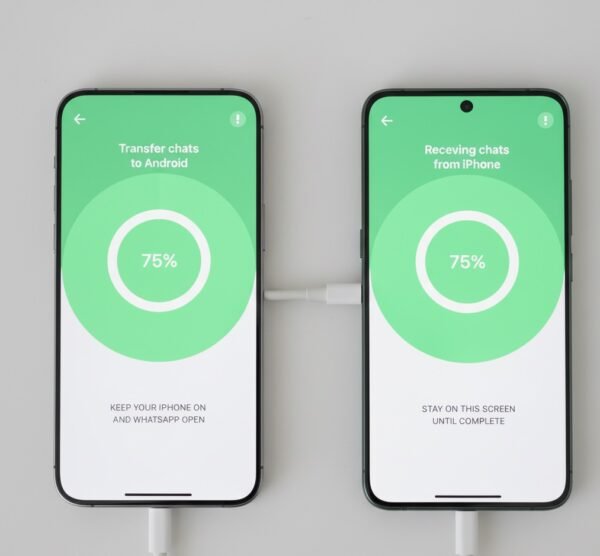
- Start setting up the new Android. When prompted to transfer data, connect the iPhone and Android with the cable.
- The Android device will show a QR code or prompt. Open WhatsApp on the iPhone and scan the code or follow the on-screen steps.
- Tap Start on the iPhone to begin sending chats and media. Complete verification on the Android. WhatsApp will detect the transferred content during setup and restore it. (WhatsApp Help Centre)
Notes: Google Pixel, Samsung and many Android 12+ devices support this flowcheck device-specific pages if you have a branded phone. (Google Help)
Android → iPhone (Move to iOS app)
Apple’s Move to iOS app supports transferring WhatsApp from Android to iPhone during the iPhone setup process. (WhatsApp Help Centre)
What you need: Move to iOS app installed on Android, both phones on the same Wi-Fi or connected by cable, iPhone in setup mode. (WhatsApp Help Centre)
Steps:
- Start iPhone setup. When you reach Apps & Data, choose Move Data from Android.
- On Android, open Move to iOS, enter the code shown on the iPhone and follow prompts.
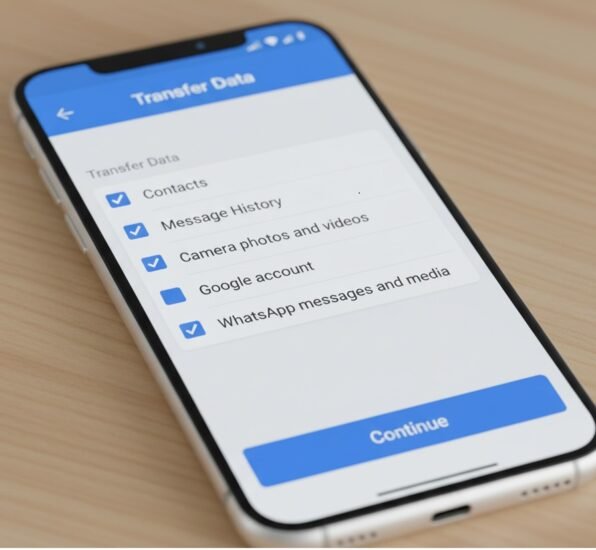
- Select WhatsApp on the Transfer Data screen. WhatsApp on Android will prepare the data for export; you’ll be signed out of Android WhatsApp once ready.
- Finish the Move to iOS flow; install WhatsApp on the iPhone and complete verification. The app will import the data transferred. (WhatsApp Help Centre)
Samsung / Pixel special flows
Samsung phones often have integrated SmartSwitch features that help transfer WhatsApp; Google Pixel provides step-by-step support pages. If your device vendor offers a transfer assistant, follow their official guidance in tandem with WhatsApp’s guidance. (Google Help)
Troubleshooting: common problems & practical fixes
Problems happen. Here are the most common issues and how to solve them quickly.
“No backup found” when restoring (Android/iPhone)
- Check you’re signed into the same Google Account (Android) or Apple ID (iPhone) used to create the backup. (WhatsApp Help Centre)
- Confirm the backup completed successfully on the old phone before switching. Create a manual backup now and try again. (WhatsApp Help Centre)
Transfer stalls during cross-platform move
- Ensure both devices have enough battery and remain unlocked/powered. Use the cable method instead of Wi-Fi if offered; it’s faster and more stable. (Google Help)
Media missing or partial restore
- If you opted not to include videos in cloud backups, they won’t be restored. Re-backup with videos enabled if you need them. For cross-platform moves, let the transfer fully complete; large media can take time. (WhatsApp Help Centre)
“Can’t verify number” errors
- Verification requires the same phone number and an SMS/phone call. If you changed numbers, use WhatsApp’s Change Number feature on the old phone before transfer. Back up, then restore on the new phone with the new number. (Ensure you follow the official change-number flow.) (WhatsApp Help Centre)
Corrupted backup
- If the cloud backup is corrupted, WhatsApp suggests creating a new manual backup and attempting to restore. If it persists, consult WhatsApp Help pages for guidance on data recovery. (WhatsApp Help Centre)
Advanced tips: WhatsApp Business, stickers, multi-device & more
WhatsApp Business
- Business accounts may have additional metadata (catalogues, labels). Official transfer support exists, but check WhatsApp Business Help for special notes. Always back up business data before migrating. (WhatsApp Help Centre)
Stickers, archived chats and starred messages
- Most transfer methods include stickers and archived chats. For edge cases, export chat history for particular threads (WhatsApp → Chat → More → Export chat) as a local copy. This is a fallback, not a primary method. (WhatsApp Help Centre)
Multi-device sessions and WhatsApp Web
- Transferring your phone does not automatically migrate active linked devices (WhatsApp Web/desktop). Re-link your desktop sessions after verifying the new phone. Multi-device features may allow limited concurrent sessions. Read WhatsApp’s multi-device guidance. (WhatsApp.com)
Keep a local archive (optional, advanced)
- Power users may keep an additional local archive: export important chats as text/attachments (via export chat) and save media to a secure cloud drive. This is extra insurance, but not necessary if you follow official flows.
Security, privacy, and compliance considerations
- Use official methods only. Third-party tools may ask for account credentials or break end-to-end encryption; avoid them. Official flows preserve encryption where supported. (WhatsApp Help Centre)
- Encrypted backups: If you enable end-to-end encrypted cloud backups, remember your password or 64-digit key is the only way to access that backup. Losing it means losing the backup permanently. (WhatsApp Help Centre)
- Wiping old devices: After validating your new device’s restore, factory reset or securely wipe the old phone before passing it on or selling it. This prevents residual data exposure.
- Regulatory notes: Organisations that operate under data retention policies (education, legal, healthcare) should consult internal compliance officers, as transferring personal data may have recordkeeping or audit implications.
Frequently Asked Questions (FAQ)
Q: Will I lose my WhatsApp groups when I transfer?
A: No. Groups are tied to your account and phone number; if you restore your chats correctly, group memberships and history should transfer. For cross-platform moves, ensure the transfer completes fully before engaging in new group chats. (WhatsApp Help Centre)
Q: Can I transfer from an Android Google Drive backup to an iPhone iCloud?
A: Not directly. Google Drive and iCloud are platform-specific. Use official cross-platform transfer tools (Move to iOS or cable transfer) to move data between Android and iPhone. (WhatsApp Help Centre)
Q: How long does a transfer take?
A: It depends on backup size and connection type. Local cable transfers are usually faster than cloud restores. Large media libraries (many GBs) can take hours on slower networks. Always ensure both devices are plugged in and on stable connections. (Google Help)
Q: Are my backups encrypted in the cloud?
A: WhatsApp offers end-to-end encrypted backups for both Google Drive and iCloud. You can enable this in WhatsApp Settings → Chats → Chat backup → End-to-end encrypted backup. Remember to save your password/key safely. (WhatsApp Help Centre)
Q: What if I changed my phone number during the transfer?
A: Use WhatsApp’s Change Number feature on your old phone before transferring. Back up after the change so the new number is associated with the backup. Restore on the new device with the new number verified. (WhatsApp Help Centre)
Your nine-step action checklist
You now have a complete, official, and secure road map to ensure you don’t lose a single chat when switching phones.
Nine-step action checklist
- Confirm the phone number and accounts (Google/iCloud).
- Create a fresh manual backup on the old phone.
- Decide the right method (cloud for the same OS, cable, or Move to iOS for cross-platform).
- Ensure enough cloud storage and battery.
- Use end-to-end encrypted backups if you want extra security (store the key).
- Follow the official WhatsApp/Apple/Google transfer steps during device setup. (WhatsApp Help Centre)
- Troubleshoot common errors (account, backup visibility, corrupted backup) per the FAQ above. (WhatsApp Help Centre)
- Confirm everything on the new device and wipe the old device securely.
- Re-link desktop sessions and re-enable multi-device links.
If this guide helped, subscribe to Digital Solutions Edge for more practical, step-by-step tech how-tos. Share this post with anyone about to switch phones; it could save them hours and a world of lost memories.
Internal links:
External official resources (recommended reading):
- WhatsApp Help Centre: Transfer your chat history. (WhatsApp Help Centre)
- WhatsApp Help: Back up your chat history (Android/iPhone). (WhatsApp Help Centre)
- Google Pixel support: Transfer WhatsApp data to a new Android. (Google Help)
- Apple: Move from Android to iPhone (Move to iOS). (Apple Support)