



What if you could hand your entire WordPress plugin directory to an AI assistant, describe exactly what you want built or changed, and get back production-ready code in minutes?
- Table of Contents
- What Is Claude Code and Why WordPress Developers Should Care
- How Claude Code Differs From Standard AI Chat Tools
- Setting Up Claude Code for WordPress Development
- 7 Proven Ways to Use Claude Code With WordPress
- Building a WordPress Plugin from an Existing Plugin
- Connecting Claude Code to WordPress via MCP
- Common Mistakes to Avoid
- Is Claude Code Right for Your WordPress Workflow?
- FAQ
That is not a hypothetical. Developers are doing it right now with Claude Code.
The gap between “I have an idea for a plugin” and “I have a working plugin” used to be measured in weeks, sometimes months of PHP, debugging, and documentation hunting. In 2026, that gap has shrunk to a single terminal session. Whether you are a seasoned WordPress developer looking to move faster or a site owner who has always wanted a custom solution but could never justify the cost of a developer, Claude Code has entered the picture in a way that genuinely changes your options.
This guide covers everything you need to know: what Claude Code actually is, how to set it up for WordPress development, the seven most effective ways to use it, and the pitfalls that trip people up early. By the end, you will know whether it belongs in your toolkit and exactly how to get started.
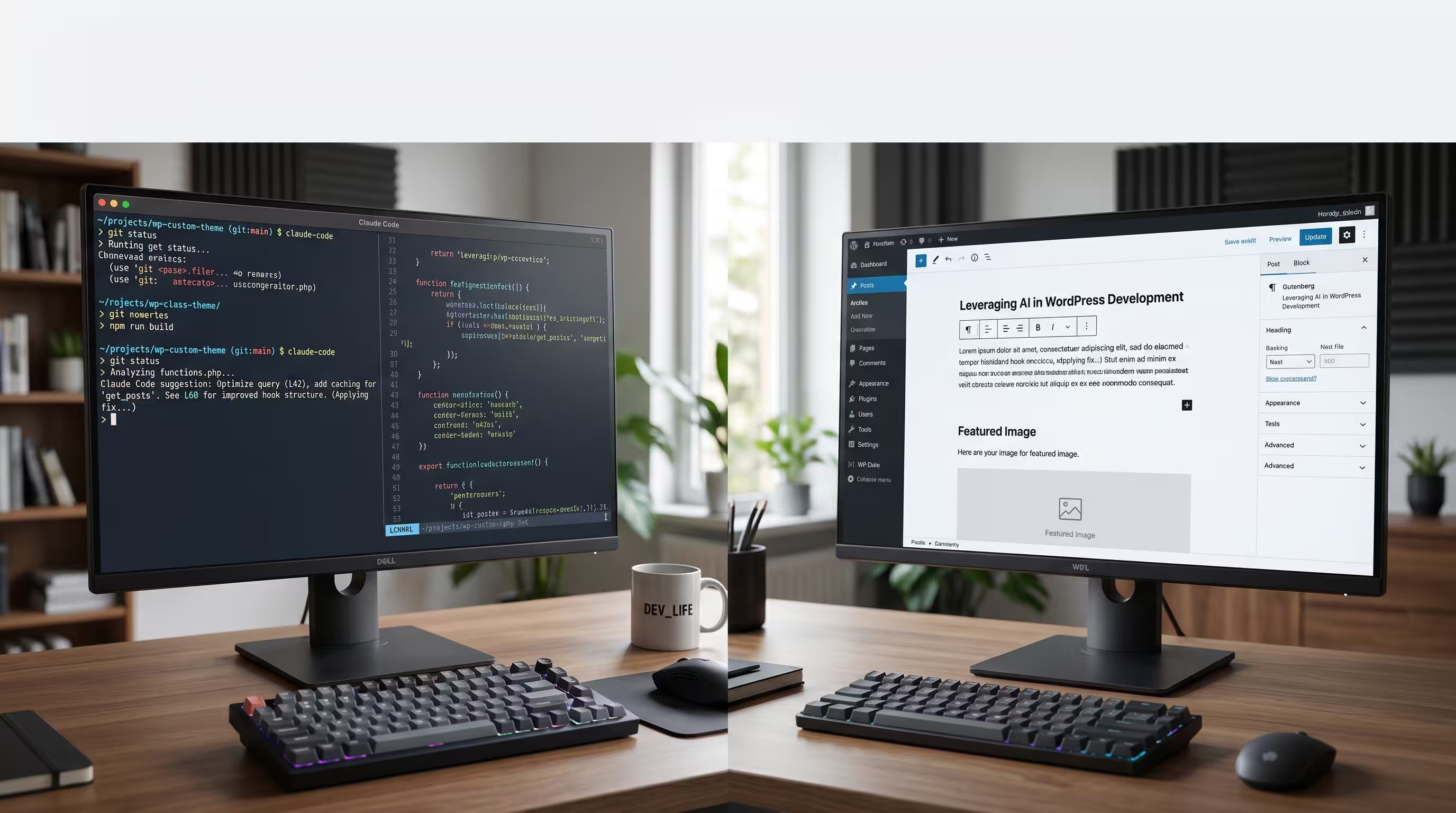
Table of Contents
Disclosure: Our content is designed to help you build transformational leverage across your areas of interest and needs. Digital Solutions Edge is reader-supported; when you engage with our recommendations or click certain links, we may receive a commission. This support allows us to continue delivering the digital solutions you rely on. Thank you for being part of our community.
What Is Claude Code and Why WordPress Developers Should Care
Claude Code is a command-line AI coding tool built by Anthropic. Unlike AI tools that live in a browser tab, Claude Code runs directly in your local terminal. You point it at a codebase, your entire WordPress install, a single plugin folder, or a theme, and it reads everything. Not just the file you paste in, all of it.
That distinction matters more than it might sound.
Most AI-assisted coding workflows involve a lot of copy-paste. You copy a function, paste it into a chat interface, describe the problem, get a response, copy the fix, paste it back in, and repeat. It works, but it is slow, and it requires you to do all the context management manually. You have to know which files are relevant. You have to make sure the AI sees the right dependencies. You become the connective tissue between the tool and the codebase.
Claude Code removes that friction entirely. It reads your codebase as a whole and can edit multiple files simultaneously. It understands the relationship between your plugin’s main file, its admin class, its REST API handlers, and its database schema because it has read all of them. When you ask it to add a feature or fix a bug, it traces that logic across files before touching anything.
For WordPress developers, this has a specific practical value. WordPress plugins are rarely single-file projects. Most useful plugins have a folder structure with separate files for activation hooks, admin settings pages, front-end scripts, database queries, and shortcodes. Getting an AI to understand that structure at a glance and edit coherently across it is, honestly, what makes Claude Code different from the alternatives.
How Claude Code Differs From Standard AI Chat Tools
The easiest way to understand the difference is to compare two workflows doing the same task.
Workflow A (Standard AI Chat): You want to add a custom settings page to an existing plugin. You open the plugin’s main file, copy it, paste it into Claude.ai or ChatGPT, explain what you need, get back modified code, then realise the AI did not account for the admin menu registration function in a separate class file. So you copy that file too, paste it in, re-explain, get another response, and so on. Three to four rounds later, you have something close to what you wanted.
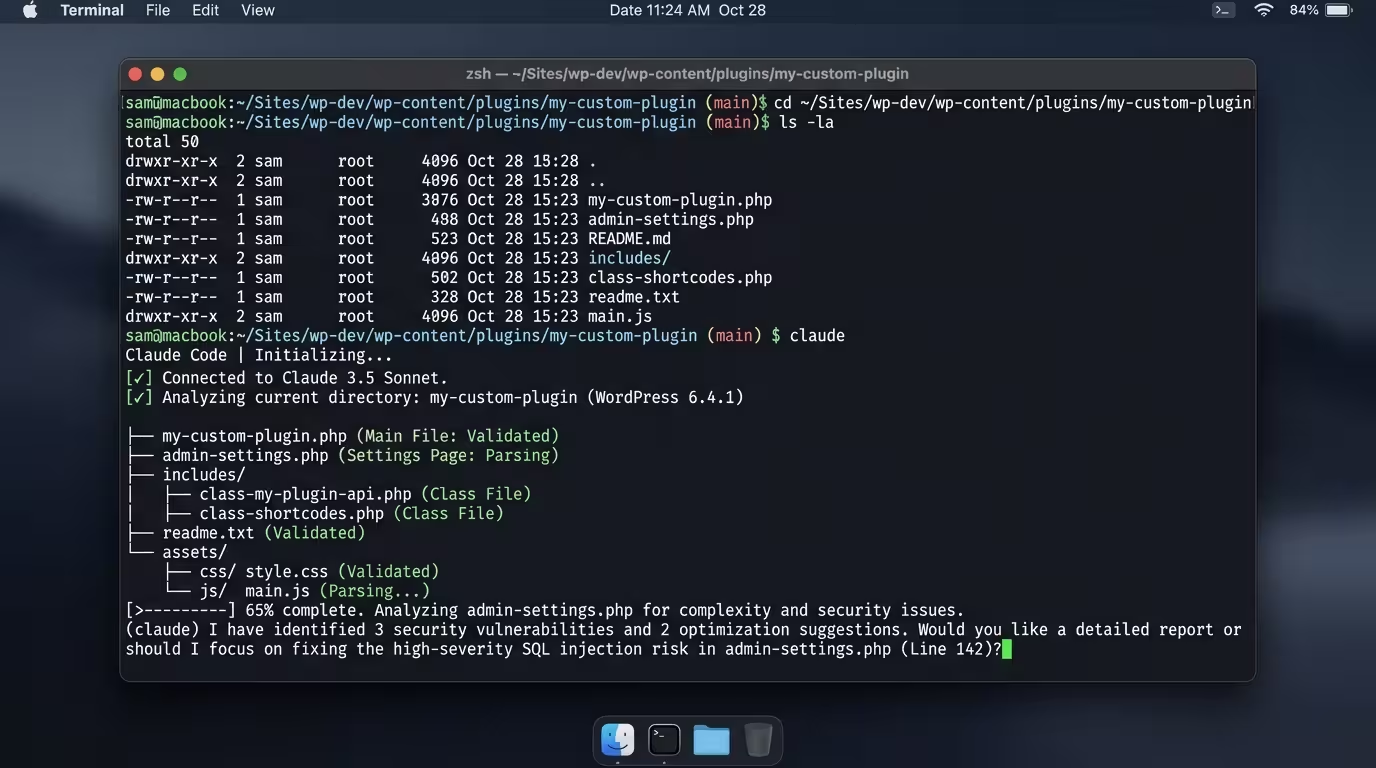
Workflow B (Claude Code): You open your terminal in the plugin directory, type claude, describe what you want, and Claude Code reads the entire plugin folder’s main file, class files, and assets, all of it, before writing a single character. It edits the files that need editing, creates the ones that need creating, and shows you a diff of everything it changed before committing.
The second workflow is measurably faster and substantially more accurate, especially as your codebase grows.
There is also a third capability that does not get enough attention: Claude Code integrates with WP-CLI. You can instruct it to activate a plugin, create test users, run database queries, or flush caches directly from within the same session. This means you can code, test, and iterate without leaving your terminal or switching between windows.
Setting Up Claude Code for WordPress Development
Getting Claude Code running with WordPress takes less time than most developers expect. Here is the setup path that works reliably.
What You Need Before You Start
- Node.js 18 or higher is installed on your machine
- A local WordPress environment — WordPress Studio (free, from WordPress.com) or LocalWP is the two most recommended options
- An Anthropic account with API access (Claude Code requires a paid plan or API subscription)
Installation Steps
Step 1: Install Claude Code via npm.
Open your terminal and run:
npm install -g @anthropic-ai/claude-code
This installs Claude Code globally so you can access it from any project directory.
Step 2: Set up your local WordPress environment.
Download and install WordPress Studio from WordPress.com or LocalWP from the LocalWP website. Create a new local site. Both tools give you a fully functional WordPress install on your machine with no server configuration required.
Step 3: Open your site’s terminal.
In WordPress Studio, use the built-in terminal. In LocalWP, use the “Site Shell” feature. Both of these pre-load the correct environment variables (PHP path, MySQL connection, WP-CLI availability) so Claude Code can interact with your WordPress install correctly. Using a generic system terminal without these variables set tends to cause WP-CLI errors.
Step 4: Navigate to your plugin folder and launch Claude Code.
cd wp-content/plugins/your-plugin-folder
claude
Claude Code will start a session and read the directory you are in.
Step 5: Authenticate.
On your first run, Claude Code will prompt you to authenticate with your Anthropic account. Follow the link it provides, authorise the connection, and you are in.
That is the full setup. Most developers are running their first Claude Code session within fifteen minutes of starting.
7 Proven Ways to Use Claude Code With WordPress
This is where the practical value becomes concrete. These seven use cases cover the range from beginner-accessible to genuinely advanced.
1. Analyse and Debug an Existing Plugin
Point Claude Code at a plugin that is broken, slow, or behaving unexpectedly. Describe the symptom. Claude Code reads the codebase, identifies the likely cause, and either fixes it directly or walks you through the logic so you understand what is happening.
This is the fastest entry point for developers who are new to AI-assisted coding. You do not need to know exactly what to build. You just need to know something is wrong.
2. Add Features to an Existing Plugin
This is the use case most developers reach for first after debugging. You have a plugin that does 80% of what you need. You want the other 20% without starting from scratch.
Give Claude Code the plugin folder and describe the feature you want. Be specific: “Add an admin settings page with three fields: API key, webhook URL, and enable/disable toggle. Store values in the options table using get_option and update_option.” The more precise your prompt, the closer the first output is to what you want.
3. Build a New Plugin Using an Existing One as a Template
This is one of the most powerful workflows available. If you have a plugin that has the architecture you want, the folder structure, the admin framework, and the naming conventions, you can use it as a foundation for something entirely new.
The prompt pattern is straightforward: “Analyse the [Plugin Name] plugin in this directory. Create a new plugin called [New Plugin Name] with the same structural approach but built for [new purpose]. Keep the same admin settings pattern and use the same folder naming conventions.”
Claude Code will read the existing plugin, understand its structure, and generate the new plugin with the new functionality, using the same professional architecture.
4. Extract and Modularise Functionality
Many older WordPress plugins are monolithic: everything in one file, no separation of concerns, difficult to maintain or extend. Claude Code can read a large single-file plugin and refactor it into a proper object-oriented structure with separate classes, a clean includes directory, and logical file separation.
This is work that most developers put off indefinitely because it is tedious and risky. Claude Code makes it approachable.
5. Security Audits
Ask Claude Code to scan your plugin for common WordPress security vulnerabilities. It looks for things like unsanitised input, missing nonce verification, direct database queries without $wpdb->prepare(), and exposed sensitive data. It flags problems and either fixes them or explains what needs to change and why.
Given that poorly written WordPress plugins are a primary entry point for site compromises, this use case alone has significant practical value for agencies and developers who maintain multiple client sites.
6. Performance Optimisation
Claude Code can identify performance anti-patterns in your plugin code: redundant database queries inside loops, missing caching, inefficient use of WordPress hooks, or scripts loading globally when they should only load on specific pages. It can rewrite these sections with better approaches, and because it has the full codebase context, it can do so without breaking the logic that depends on those sections.
7. Generating Tests and Documentation
Writing tests is the task most WordPress developers skip because it takes time they do not have. Claude Code can generate PHPUnit tests for your plugin functions based on the existing code. It can also generate inline documentation and README files that accurately describe what the plugin does.
If you have ever inherited an undocumented plugin from a previous developer, you already know the value of this.
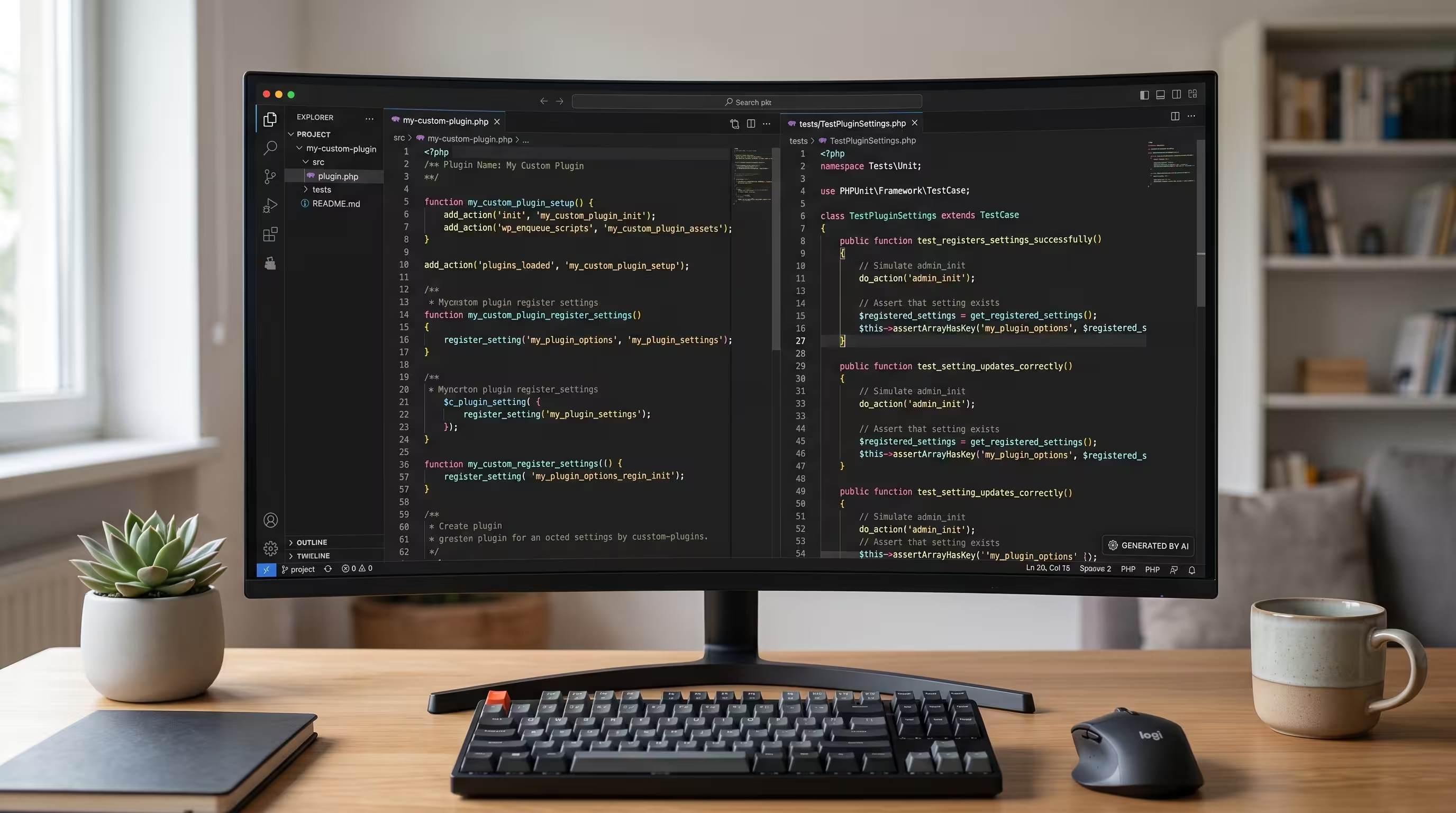
Building a WordPress Plugin from an Existing Plugin
This workflow deserves its own section because it is where Claude Code’s multi-file context awareness delivers the clearest return on investment.
The process has five stages.
Stage 1: Place the reference plugin in your plugins directory.
Whatever existing plugin you want to use as a foundation, it needs to be in your local WordPress site’s wp-content/plugins/ folder so Claude Code can access it.
Stage 2: Start a Claude Code session in your plugins directory.
Navigate to wp-content/plugins/ in your terminal, not inside the specific plugin folder. You want Claude Code to have access to both the reference plugin and the location where your new plugin will be created.
Stage 3: Write a precise prompt.
Vague prompts produce vague results. A prompt like “make a plugin like this one but different” will produce something generic. A prompt like this will not:
“Read the [Plugin Name] plugin in the [folder-name] directory. Understand its PHP class structure, admin settings implementation, and how it registers its hooks. Now create a new plugin called [New Plugin Name] with the slug [new-plugin-slug] that uses the same architectural pattern but handles [specific functionality]. The admin settings page should have [specific fields]. The plugin should [specific behaviour on front end].”
The investment you make in writing a clear prompt pays back immediately in the quality of the first draft.
Stage 4: Review the output before activating.
Claude Code will create the new plugin folder and files. Read through what it has generated before activating it in your WordPress admin. Claude Code is thorough, but it is not infallible. Check that the plugin header is correctly formatted, that the text domain matches the slug, and that the main class name does not conflict with anything else active on your site.
Stage 5: Activate and iterate.
Activate the plugin from your WordPress admin, test the functionality, and then use Claude Code to iterate. “The settings are saving correctly, but the front-end shortcode is not rendering the output. Here is what the shortcode function currently does…” From this point forward, the iterative refinement loop is fast.
Connecting Claude Code to WordPress via MCP
MCP stands for Model Context Protocol. It is a standard that lets Claude Code connect directly to external services and tools, including WordPress itself, rather than just reading local files.
Several WordPress MCP integrations are now available, including tools like AI Engine (by Jordy Meow) and Novamira. Once you configure an MCP connection between Claude Code and your WordPress site, Claude Code gains the ability to do things that go beyond code editing.
With an active MCP connection, Claude Code can:
- Create, edit, and publish posts directly from the terminal
- Manage plugin activation and deactivation
- Clean up taxonomies, users, and other content types
- Query the WordPress database and return results
- Audit your site’s installed plugins for security issues
- Generate content reports based on actual site data
Setting up an MCP connection involves enabling it from within the relevant WordPress plugin, generating a bearer token, and then referencing the MCP server in Claude Code’s configuration file. The exact steps vary by plugin, but most have a setup process that takes under ten minutes once the WordPress plugin is installed.
The practical implication is this: once MCP is configured, Claude Code becomes less of a code editor and more of a site management agent. You can ask it to do tasks that would otherwise require manual navigation through wp-admin, and it can do them faster and more consistently.
For agencies managing multiple client sites, this is a substantial operational upgrade.
Common Mistakes to Avoid
A few patterns regularly trip up new users. Knowing them in advance saves time.
Working directly on a live site. Claude Code edits files and can execute commands. Do not run it against a production WordPress install. Always use a local development environment. WordPress Studio and LocalWP both exist specifically for this purpose. Test everything locally, then deploy.
Writing vague prompts. The quality of Claude Code’s output is directly proportional to the specificity of your instructions. “Add a contact form” will produce something generic. “Add a contact form with fields for name, email, and message that sends submissions to the admin email using wp_mail(), stores each submission in a custom database table called {prefix}_contact_submissions, and displays a success message using a shortcode” will produce something you can actually use.
Accepting output without reviewing it. Claude Code is fast and usually accurate, but fast and usually accurate is not the same as always correct. Review what it produces. Run it in a test environment. Check for deprecated WordPress functions, hard-coded table prefixes, or missing sanitisation on form inputs before deploying anything.
Skipping the WP-CLI environment setup. If you try to run Claude Code from a generic system terminal without the local site’s environment variables loaded, WP-CLI commands will fail. Always use the built-in terminal in WordPress Studio or the Site Shell in LocalWP.
Treating it as a one-shot solution. The best results come from iterative prompting. First draft, review, refine, review, refine. Developers who try to get everything right in a single prompt often end up frustrated. Developers who treat it as a back-and-forth collaboration consistently get better results faster.
Is Claude Code Right for Your WordPress Workflow?
The honest answer is: it depends on what you are trying to do.
If you are a developer who writes WordPress plugins regularly, Claude Code will almost certainly speed up your workflow. The multi-file context awareness, the WP-CLI integration, and the ability to refactor legacy codebases are all genuine time-savers for people who already understand the code they are working with.
If you are a site owner or non-developer who wants to build a custom plugin, Claude Code is more accessible than it looks on the surface, but it is not a zero-effort solution. You still need to review code before activating it, understand enough about WordPress to describe what you want precisely, and be comfortable working in a terminal. The learning curve is real, and the consequences of running untested code on a production site are also real.
If you are a freelancer or agency handling WordPress sites for clients, the combination of Claude Code and MCP integration genuinely changes what you can offer. Faster plugin customisation, consistent security audits, and automated content management tasks all translate into better margins on work you are already doing.
Claude Code is a tool with a ceiling that is hard to see yet. The developers who are getting the most out of it are the ones who keep pushing the prompts to more complex tasks, more specific instructions, more ambitious integrations. If that sounds like the way you work, it belongs in your toolkit.
FAQ
What is Claude Code and how does it work with WordPress? Claude Code is a command-line AI coding tool from Anthropic that runs in your local terminal. It reads your entire codebase, including multi-file WordPress plugin directories, and can edit, create, and debug files based on your instructions. It integrates with WP-CLI to interact directly with WordPress installations in local development environments.
Can Claude Code build a WordPress plugin from scratch? Yes. Given a clear description of what you want the plugin to do, Claude Code will generate a complete plugin with proper WordPress structure: a main PHP file with the plugin header, class files, admin settings pages, hooks and filters, database interactions, and any front-end assets you specify.
Can Claude Code modify or extend an existing WordPress plugin? Yes, and this is one of its strongest use cases. Because it reads the entire plugin directory at once, it understands the existing architecture before making any changes. It can add features, fix bugs, refactor legacy code, and generate documentation without breaking the existing functionality.
Do I need coding experience to use Claude Code with WordPress? Some technical familiarity helps considerably. You need to be comfortable in a terminal, able to review PHP code at a basic level, and understand enough WordPress structure to describe what you want accurately. Developers get more out of it than non-developers, but non-developers can use it effectively with precise prompts and local test environments.
What is WordPress MCP, and how does Claude Code use it? MCP (Model Context Protocol) is a standard that allows Claude Code to connect to external services. With a WordPress MCP integration available through plugins like AI Engine or Novamira, Claude Code can create and manage content, activate plugins, query the database, and perform other site management tasks directly from the terminal, beyond just editing local files.
Is it safe to use Claude Code on a live WordPress site? It is not recommended. Claude Code edits files and can execute commands. Always use a local development environment (WordPress Studio or LocalWP) for Claude Code work, and deploy tested changes manually to production sites.
How much does Claude Code cost? Claude Code requires an Anthropic account with either a Pro, Team, or Enterprise plan or direct API access. Pricing changes periodically. Check the Anthropic website for current plans and API rates before subscribing.
What is the difference between using Claude Code and using Claude.ai for WordPress code? Claude.ai is a browser-based chat interface. You paste code in, get responses, and manage all the context yourself. Claude Code runs in your terminal and reads your entire codebase directly, enabling multi-file edits, WP-CLI integration, and a faster iterative workflow without manual copy-pasting.
Can Claude Code help with WordPress security? Yes. You can prompt Claude Code to audit your plugin for common WordPress security vulnerabilities: missing nonce verification, unsanitised inputs, unescaped outputs, and exposed data. It identifies and can fix these issues in context, meaning it understands the surrounding code when it makes changes, rather than patching problems in isolation.
What local WordPress environment works best with Claude Code? WordPress Studio (from WordPress.com) and LocalWP are both well-suited. Both provide an integrated terminal or site shell that pre-loads the environment variables Claude Code needs to run WP-CLI commands correctly. WordPress Studio is slightly simpler to set up; LocalWP offers more advanced options for experienced developers.
Claude Code is one of the more practical AI tools to arrive in the WordPress development space in recent years. The terminal-based approach, the full-codebase context awareness, and the MCP integration together address real friction points that standard AI chat tools do not solve.
For developers, it speeds up the work you are already doing. For agencies, it opens up new efficiencies in plugin customisation, security auditing, and site management. For non-developers with clear ideas and a willingness to learn the workflow, custom plugin development is genuinely accessible for the first time.
The setup takes fifteen minutes. The first useful result can come within an hour of that. What you do with it from there depends entirely on how specifically you can describe what you need.
If you want to explore this further, the Claude Code documentation at code.claude.com is well-maintained and covers advanced features including custom commands and CLAUDE.md project configuration files. WordPress Studio’s documentation also has a growing section on AI-assisted development workflows.
Ready to take the next step in building smarter WordPress solutions? Explore DSE’s other guides in the Toolkit and Infrastructure pillar, or book a Transformation Clarity Call (TCC) with a DSE consultant to map out how tools like Claude Code fit into your specific workflow and business goals.