


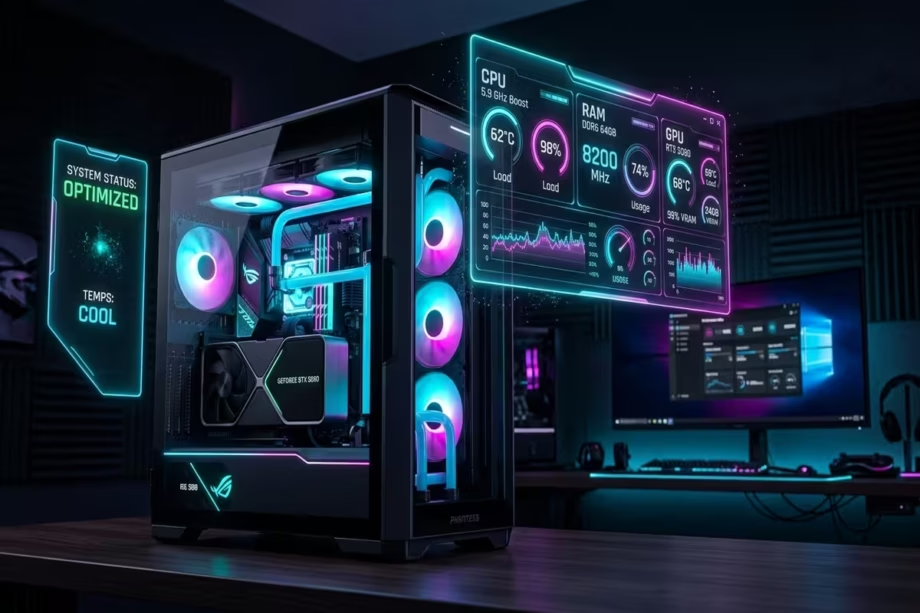
Your Windows PC used to feel fast. Boot-up was quick, apps opened without hesitation, and multitasking felt effortless. Then, somewhere along the line, it changed. The startup stretched. Background processes multiplied. Temporary files piled up quietly in corners you never thought to check. Now you find yourself staring at a spinning cursor and wondering whether you need a brand-new machine.
Here is the truth that the tech industry rarely tells you plainly: in most cases, you do not need a new PC. You need the right tools, used in the right order, for the right reasons.
The conversation around Windows performance optimisation has never been noisier. Microsoft PC Manager, CCleaner, and BleachBit each attract devoted followings and equally passionate critics. Tech forums are flooded with conflicting opinions. One thread swears by BleachBit for deep cleaning. Another warns that CCleaner once shipped with malware. A third insists that Microsoft’s own PC Manager is the only safe bet because it comes from the source itself.
This guide cuts through the noise. You will learn exactly what each tool does, what it cannot do, where it belongs in your workflow, and how to build a practical, layered performance strategy that keeps your Windows PC running at its best throughout 2026 and beyond. Whether you are managing a Dell laptop for everyday productivity, a high-output workstation for content creation, or a mid-range desktop for mixed-use tasks, the principles and tools covered here apply directly to your situation.
By the end of this guide, you will be informed about the real capabilities and limitations of the top Windows performance tools, transformed in your approach to PC maintenance, and empowered to make smarter decisions without wasting money or risking your system.
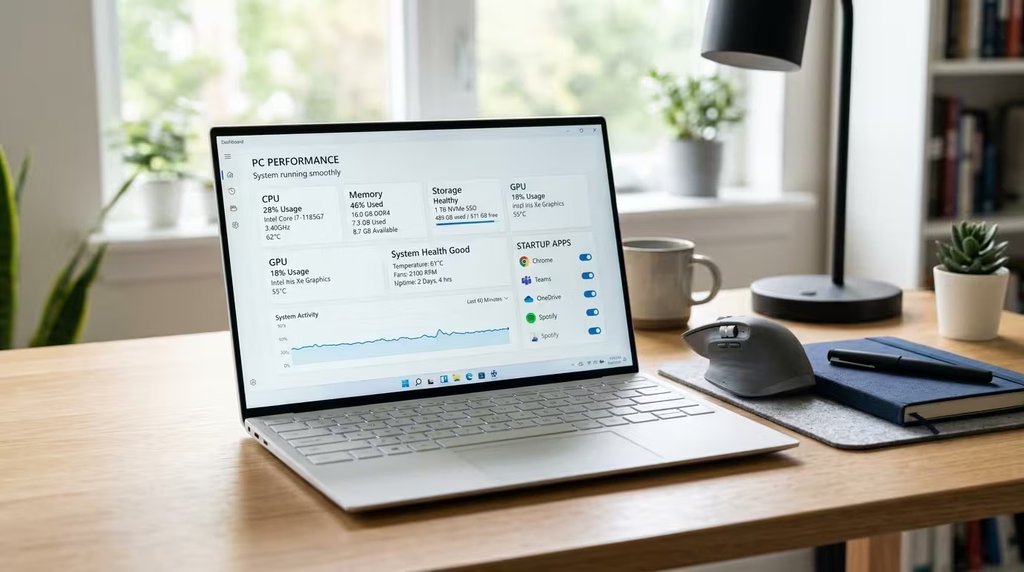
Table of Contents
Disclosure: Our content is engineered to help you make informed, data-driven, and smart decisions. Digital Solutions Edge is reader-supported; when you engage with our recommendations or click certain links, we may receive a commission. This support allows us to continue delivering the digital solutions you rely on. Thank you for being part of our community.
Why Windows PCs Slow Down Over Time
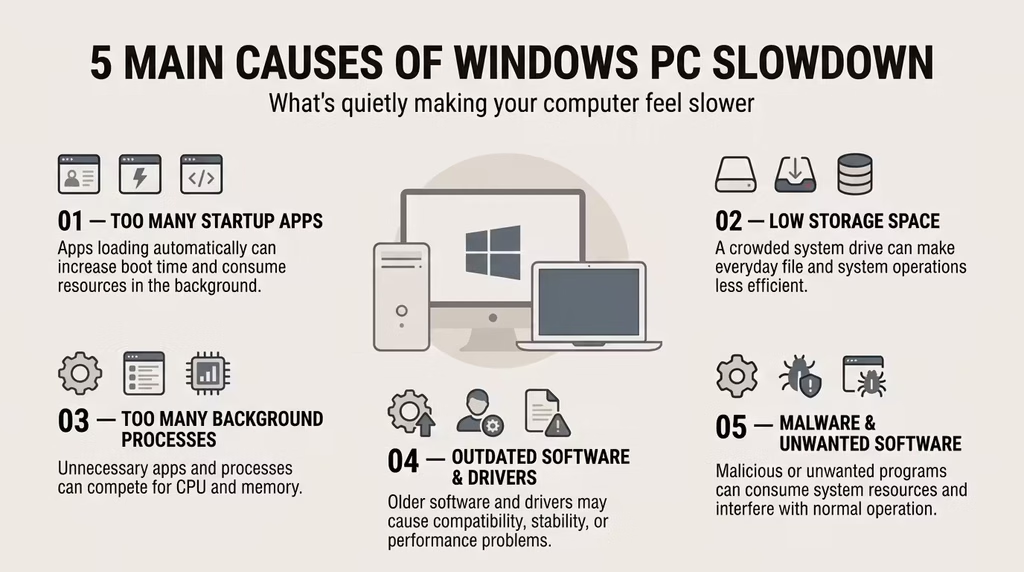
Before selecting any tool, it pays to understand the problem at the root level. Windows PCs do not slow down randomly. There are identifiable, repeatable causes that accumulate over months and years of use.
Temporary file accumulation is the most common culprit. Windows and third-party applications generate cache files, log files, and installer leftovers constantly. Over time, these can occupy several gigabytes of storage and contribute to slower disk read speeds on mechanical hard drives.
Startup bloat is the second major factor. Every application you install has an incentive to add itself to your Windows startup sequence. Spotify, Discord, OneDrive, browser update helpers, print spoolers for printers you no longer own, they all queue up at boot, each consuming CPU cycles and RAM before you have even opened your browser.
Fragmented or near-full storage slows disk access considerably, especially on older mechanical hard drives. Even on SSDs, a drive that is more than 85–90% full begins to lose write performance due to reduced space for internal operations.
Thermal throttling is a less-discussed but highly significant factor. When a CPU or GPU overheats because of dust accumulation, poor airflow, or degraded thermal paste, it deliberately reduces its own clock speed to avoid damage. The result feels like general slowness, but no software tool can fix it.
Driver conflicts and outdated drivers create instability and resource drain. An outdated graphics driver can cause GPU processes to consume far more CPU time than necessary.
Understanding these causes tells you something important: different problems require different solutions. No single tool addresses all of them. This is why a layered performance framework is far more effective than hunting for one magic application.
The 3-Layer Windows Performance Framework
The most effective approach to Windows performance follows three distinct layers, applied in sequence. Skipping layers or applying them out of order is why many users feel that optimisation tools “do not work.”
Layer 1: Clean and Clear. This is the foundation. It involves removing temporary files, clearing application caches, disabling unnecessary startup programmes, and uninstalling software you no longer use. Tools like Microsoft PC Manager, BleachBit, and CCleaner operate primarily at this layer.
Layer 2: Configure and Tune. Once the system is clean, you configure Windows settings for maximum efficiency. This includes adjusting power plans, disabling visual effects, enabling Hardware-Accelerated GPU Scheduling, and updating drivers. These are actions you take directly in Windows Settings, Control Panel, or through trusted utilities.
Layer 3: Upgrade and Sustain. Some performance limits are hardware constraints, not software problems. An NVMe SSD upgrade, a RAM expansion, or improved thermal management falls into this layer. No cleaning tool replaces hardware when hardware is the bottleneck.
Every tool and tip in this guide maps to one or more of these layers. When you know which layer you are working on, you apply the right tool with the right expectations.
Microsoft PC Manager: The Official Contender
Microsoft PC Manager entered the market quietly but has grown into the most credible first-party performance tool Microsoft has ever published. Available free through the Microsoft Store, it supports Windows 10 (build 19042 and later) and Windows 11, on both x64 and ARM64 platforms.
What It Does
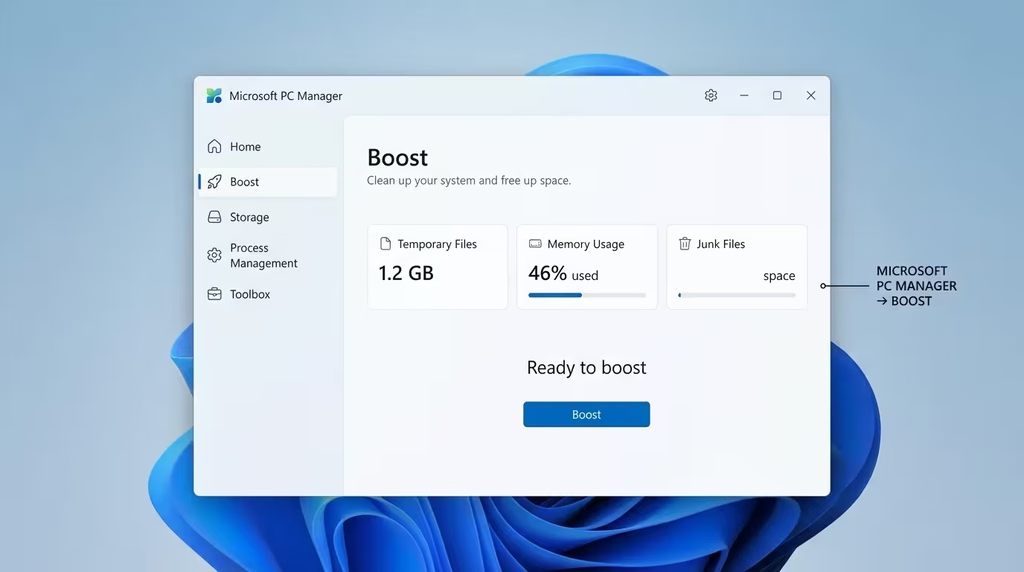
PC Manager consolidates several Windows maintenance functions that were previously scattered across different system settings and utilities. The Boost feature clears temporary files, ends unnecessary background processes, and manages startup applications. The Health Check function scans for common Windows issues, including disk fragmentation, outdated drivers, and security vulnerabilities.
The Storage page provides access to a Deep Cleanup tool that scans for system junk files and application cache. A Process management tab lets you terminate resource-heavy applications, similar to Task Manager but with a simpler interface. There is also a pop-up blocker designed to suppress intrusive upgrade prompts within applications.
Real-World Performance Gains
In practice, users report small but real improvements, a few hundred megabytes or several gigabytes of recoverable storage and minor snappier behaviour in light multitasking scenarios.
Measured, repeatable performance improvements are typically small. Reclaiming RAM helps when a machine is near its memory limit and swapping, but Windows automatically manages RAM and will repopulate caches shortly after manual clearing.
This is an important point. PC Manager’s value is real, but it is transient on machines that have no underlying accumulation problem. For a well-maintained PC that runs regular cleanup routines, the Boost button will feel underwhelming. For a cluttered, rarely-cleaned system with years of startup bloat, it can make a genuine difference.
The Honest Pros
- Free and trustworthy source. Coming directly from Microsoft, there are no third-party trust concerns, no premium upsell pressure, and no background telemetry to a competitor’s server.
- Beginner-friendly interface. The clean, guided layout makes it accessible to users who are not comfortable navigating deep Windows settings.
- Safe default behaviour. There are no ads, no scare tactics, and no attempts to upsell you into a paid version. That alone puts it ahead of much of the competition.
- Deep Uninstall function. It offers a Deep Uninstall option intended to remove not just programme files but residual files and related registry entries left behind by conventional uninstallers.
The Honest Limitations
A slow PC is usually slowed down by too many startup programmes, low storage, outdated hardware, or software conflicts, not by a lack of cleanup tools. No app can compensate for those fundamentals.
There is also a regional availability consideration. PC Manager is not yet available in all locales. Availability is controlled per region in the Microsoft Store, and some regions may still see it as “not yet available” while Microsoft rolls it out. Users in some regions, including parts of Africa, may need to temporarily set their Windows region to the United States to access the Store listing or use the offline installer.
A further consideration is that the app has begun showing promotional content and ads for Microsoft 365 and other Microsoft services, which undermines the “free, no-strings” positioning and creates monetisation incentives to surface Microsoft subscriptions to maintenance audiences.
DSE Verdict on PC Manager
PC Manager is the ideal starting point for the majority of Windows users. It is the safest, cleanest entry into Layer 1 maintenance. Use it as your monthly maintenance pass. Run Health Check before Boost, review the startup recommendations, and treat the Deep Cleanup with care. Specifically, avoid deleting Prefetch data, as this can temporarily slow application launches while Windows rebuilds its usage patterns.
CCleaner: The Popular Choice Under the Microscope
CCleaner, developed by Piriform and owned by Gen Digital (formerly Avast), has been the most widely recognised PC cleaning tool for over a decade. Its name appears in virtually every “how to speed up Windows” guide ever written, which makes examining its current standing all the more important.
What It Does
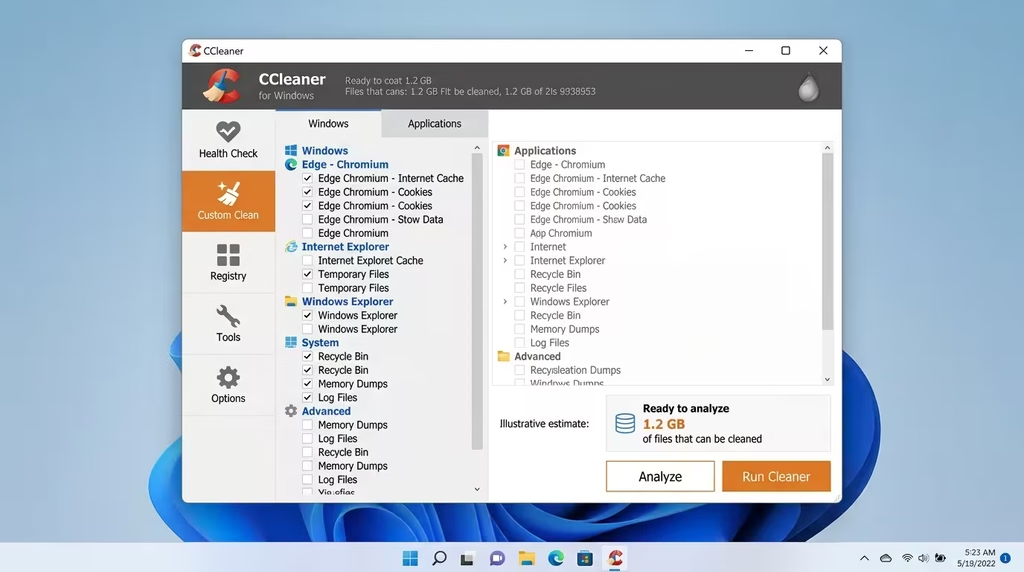
CCleaner’s core function is the removal of temporary files, browser cache, cookies, and application junk across Windows and installed browsers. Its Custom Clean feature lets you specify exactly which file types and locations to target. Beyond file cleanup, it includes a Registry Cleaner, a Software Updater, a Startup Manager, and a browser extension manager, making it the broadest all-in-one feature set in this comparison.
The free version covers most everyday cleaning tasks. The Pro version, priced at approximately $29.95 per year, adds real-time monitoring, automatic updates, and priority customer support.
Why CCleaner Remains Popular
For users who want a single familiar interface that handles multiple PC maintenance tasks without navigating through Windows Settings, CCleaner delivers genuine convenience. Its browser data cleanup is thorough, covering Chrome, Firefox, Edge, Brave, and Opera. The Startup Manager gives a clear view of what is loading at boot, and the Software Updater is particularly useful for keeping third-party applications patched without manually checking each one.
For organisations and IT administrators, CCleaner Business Edition provides central management capabilities that BleachBit and PC Manager do not offer at scale.
The Legitimate Concerns
CCleaner carries a security history that cannot be ignored. In September 2017, attackers compromised CCleaner’s build server and distributed a malicious version of the software that was downloaded by approximately 2.27 million users before detection, according to a report published by security firm Cisco Talos at the time. Piriform and Avast addressed the breach and issued clean updates within days, but the incident demonstrated how dangerous supply chain attacks are for widely distributed software.
Since then, CCleaner has faced criticism for increasingly aggressive behaviour toward users of the free version, including persistent prompts to upgrade, bundled offers during installation that require active opt-out, and background processes that run even when the application is closed.
The Registry Cleaner is a particularly contentious feature. Registry cleaning is rarely necessary in modern Windows. Both tools can clean the registry, but this is not something that needs routine attention on current versions of the operating system. Aggressive registry cleaning has been known to cause application errors and, in worst cases, system instability. The benefit is minimal; the risk, while low, is real.
DSE Verdict on CCleaner
CCleaner remains a functional tool for users who need its broader feature set and prefer a familiar interface. If you use it, stick to the Custom Clean function for browser and temporary file removal. Avoid the Registry Cleaner unless you have a specific, diagnosed reason to use it. Watch the installation carefully to avoid bundled offers, and consider whether the background process it runs is something you want active on your machine.
For straightforward file cleanup alone, it has been overtaken by more focused, more trustworthy alternatives. For its multi-function toolkit, it retains relevance, particularly for those who have used it for years without issues and understand how to configure it safely.
BleachBit: The Open-Source Privacy Champion
BleachBit occupies a different category entirely. Where CCleaner is built around convenience and broad features, BleachBit is built around transparency and depth. It is free and open-source software (FOSS), meaning its entire codebase is publicly auditable by anyone. There are no hidden processes, no telemetry, no ads, and no premium upsell.
What It Does
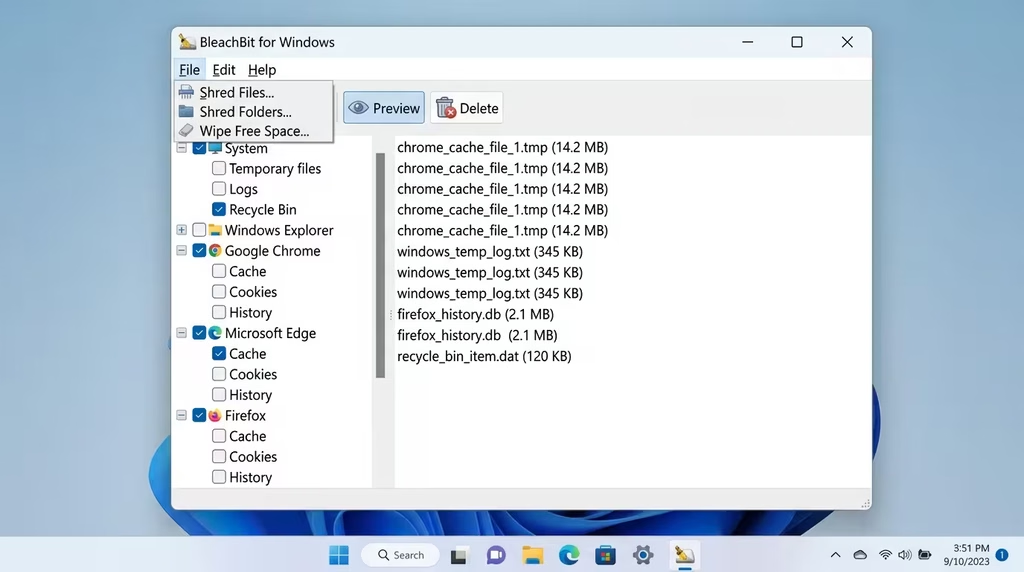
BleachBit’s primary function is deep, granular file deletion. It supports over 70 applications out of the box, cleaning their caches, logs, and temporary data. It also supports secure file shredding, which overwrites deleted data to prevent forensic recovery, a feature particularly relevant for privacy-conscious users or anyone handling sensitive professional data.
For advanced users, BleachBit supports custom cleaning rules via the winapp2.ini extension file. This community-maintained database significantly extends BleachBit’s default cleaning targets to hundreds of additional applications, making it arguably the most thorough file-based cleaner available for Windows.
On the Linux side, BleachBit has no equivalent competition. It is the standard choice for system administrators and privacy-focused users on that platform.
Why Security Experts Prefer BleachBit
The open-source model removes the primary concern that plagues most commercial cleaning tools: you cannot hide malicious behaviour in code that the entire world can read. BleachBit has been referenced publicly by IT and security professionals as a trustworthy option for file removal. Its secure shredding capability is used in regulated environments where data residue presents a compliance risk.
No background processes are running when BleachBit is closed. There are no ads. There are no tracking mechanisms. The software does exactly what it says it does, and nothing else.
The Learning Curve and Risks
BleachBit’s interface is functional rather than polished. Users who are accustomed to CCleaner’s guided, wizard-style approach will find BleachBit more demanding. More importantly, the depth of BleachBit’s cleaning options means that careless selection can delete files that applications depend on. BleachBit’s capacity for damage is significantly reduced when compared to CCleaner, but you still need to be careful about what you select for deletion.
The practical guidance is straightforward: read each option before enabling it. BleachBit labels its options clearly, and hovering over a category typically shows what will be deleted. Do not enable cleaning for applications you actively use without first understanding what data will be removed.
DSE Verdict on BleachBit
For privacy-conscious users, system administrators, educators handling sensitive content, and anyone who wants deep cleaning without background processes or advertising, BleachBit is the superior choice. It belongs in the toolkit of anyone for whom data integrity and transparency are non-negotiable. Its learning curve is modest; one or two careful sessions are enough to build confidence.
CCleaner vs BleachBit: The Head-to-Head Verdict
Both tools serve legitimate purposes, but they serve different users with different priorities. Here is a clear, structured comparison:
| Feature | CCleaner | BleachBit |
| Cost | Free (limited) / Pro ~$29.95/year | 100% Free and Open-Source |
| OS Support | Windows, macOS, Android | Windows, Linux |
| Interface | Modern, polished, guided | Minimalist, functional |
| Cleaning Depth | Broad but surface-level | Deep, granular, and configurable |
| Registry Cleaning | Yes (use with caution) | No |
| Secure File Shredding | Pro version only | Included in the free version |
| Background Processes | Yes, runs at startup | No |
| Ads and Upsell | Present in the free version | None |
| Transparency | Closed-source | Fully open-source |
| Security History | 2017 supply chain breach | No known security incidents |
| Extra Features | Software updater, startup manager | Custom cleaning via winapp2.ini |
| Best For | Beginners, multi-function maintenance | Privacy users, deep cleaning, Linux |
The honest answer to “which is better” depends entirely on what you need. If you are a DSE reader who manages multiple digital tools, handles client data, or simply wants the cleanest possible conscience about what software is running on your machine, BleachBit is the recommendation. If you are managing a PC for a less technical family member or client who needs a guided, all-in-one interface and basic maintenance, CCleaner Free, with careful configuration, is functional.
For a Dell PC used in a professional productivity context, the DSE recommendation is Microsoft PC Manager as your primary monthly maintenance tool, BleachBit for quarterly deep cleaning, and neither tool’s Registry Cleaner for routine use.
Windows Built-In Tools You Are Probably Ignoring
Before downloading any third-party tool, Windows already provides a set of maintenance utilities that most users underuse. These tools are safe, updated by Microsoft, and require no installation.
Storage Sense
Found in Settings > System > Storage, Storage Sense automatically removes temporary files, empties the Recycle Bin on a schedule, and clears the Downloads folder of files older than a period you specify. It is set-and-forget maintenance that runs silently in the background.
To activate it, open Settings, navigate to System > Storage, and toggle Storage Sense to On. Click “Configure Storage Sense” to customise the schedule and file types it targets.
Disk Cleanup
The classic Disk Cleanup tool, accessed by searching “Disk Cleanup” in the Start menu, identifies temporary files, Windows Update cleanup packages, system error memory dump files, and other recoverable storage. Running it as an administrator unlocks the “Clean up system files” option, which can recover considerably more space than the standard run.
Task Manager Startup Tab
Press Ctrl + Shift + Esc to open Task Manager and navigate to the Startup Apps tab. Here you will see every programme set to launch at boot, along with its measured startup impact. Disabling high-impact items that you do not need immediately at login can reduce boot time substantially.
Power Mode Settings
Go to Settings > System > Power & Battery and set Power Mode to “Best Performance.” On a desktop or plugged-in laptop, this removes CPU throttling that Windows applies to conserve energy. The result is more consistent performance during intensive tasks.
Defragment and Optimise Drives
For mechanical hard drives, regular defragmentation improves read speeds by reorganising fragmented file clusters. For SSDs, Windows runs TRIM operations automatically to maintain write efficiency. Search “Defragment and Optimise Drives” in the Start menu to access this tool and check when each drive was last optimised.
Advanced Manual Tweaks for Power Users
Once your system is clean and your built-in tools are configured, these targeted manual adjustments deliver measurable improvements for users who want to go further.
Disable Visual Effects
Search “Adjust the appearance and performance of Windows” in the Start menu. In the Performance Options dialogue, select “Adjust for best performance” to disable all animations, shadows, and transparency effects. On older hardware, this can produce a noticeably snappier experience. On modern high-end machines, the difference is subtle, but the principle of removing unnecessary GPU overhead is always sound.
Enable Hardware-Accelerated GPU Scheduling (HAGS)
Navigate to Settings > System > Display > Graphics Settings. Toggle “Hardware-Accelerated GPU Scheduling” to On. This transfers GPU scheduling workloads from the CPU to the GPU’s own scheduler, reducing latency and freeing CPU cycles for application tasks. Beneficial for gaming and GPU-intensive work. Requires a compatible NVIDIA or AMD GPU with updated drivers.
Update GPU Drivers Directly
Avoid relying on Windows Update for graphics driver updates. Visit the NVIDIA, AMD, or Intel website directly and download the latest driver for your specific GPU model. Outdated graphics drivers are a common, silent source of performance problems and application instability.
Game Mode and Focus Settings
In Settings > Gaming > Game Mode, toggle Game Mode to On. This prioritises system resources for the foreground application and pauses Windows Update installations during active use. Even outside gaming contexts, it is useful for video rendering, large batch processing, and any session where you need maximum, uninterrupted CPU and GPU allocation.
O&O ShutUp10++ for Telemetry Management
O&O ShutUp10++ is a free, portable utility that provides a single interface for disabling Windows telemetry, background advertising identifiers, and data-sharing features that Windows enables by default. It requires no installation and is fully reversible. For privacy-conscious professionals, it is one of the most useful tools in this category.
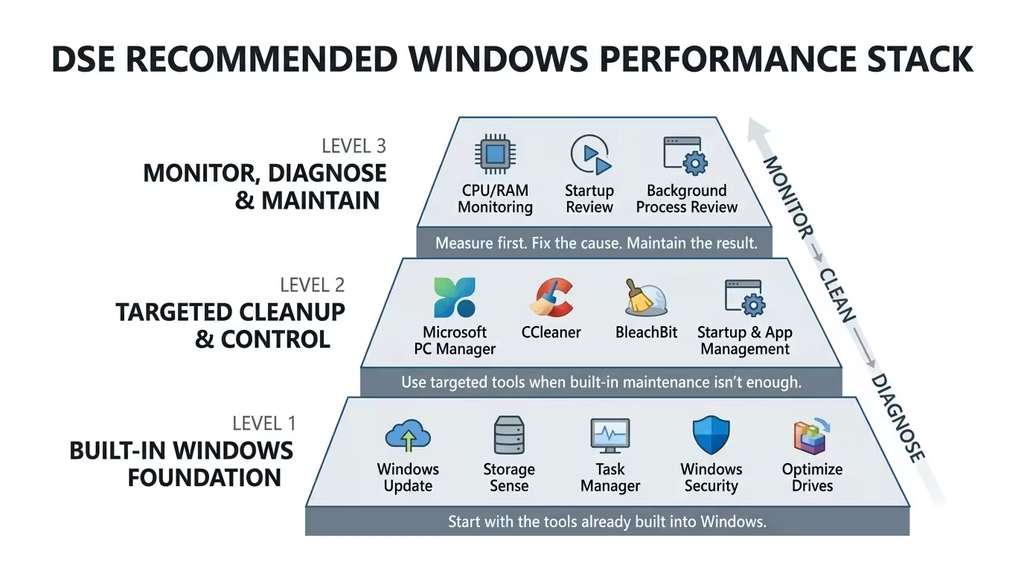
The DSE Recommended Performance Stack
After evaluating all options, here is the performance stack that DSE recommends for the majority of Windows users, including those running Dell, HP, Lenovo, and similar mid-range to professional-grade machines:
Tier 1: Monthly Maintenance (Beginner-Friendly)
- Microsoft PC Manager — Run Health Check and Boost monthly. Manage startup apps. Use Deep Cleanup quarterly, and skip Prefetch cleaning.
- Windows Storage Sense — Enable and set to run automatically every month.
- Task Manager Startup Tab — Review and disable high-impact startup items after any new software installation.
Tier 2: Quarterly Deep Cleaning (Intermediate)
- BleachBit — Run a careful, selective deep clean quarterly. Enable cleaning for browsers, system cache, and specific applications you understand. Use the secure shredder for sensitive file deletion.
- Disk Cleanup (as Administrator) — Run “Clean up system files” to recover Windows Update package space.
- Defragment and Optimise Drives — Check and run as needed based on last optimisation date.
Tier 3: Targeted Utilities (As Needed)
- Revo Uninstaller — Use when uninstalling software to remove registry remnants and leftover files that standard uninstallers miss.
- O&O ShutUp10++ — Run once to configure privacy and telemetry settings, then as needed after major Windows updates.
- Driver Update Utilities — Visit your GPU manufacturer’s site directly for driver updates. For chipset and other driver categories, use your PC manufacturer’s support page.
What to Avoid in the Stack
- Avoid “all-in-one” system booster tools that promise dramatic RAM recovery or speed multipliers. These often introduce more overhead than they remove.
- Avoid aggressive Registry Cleaner use. The Windows Registry is self-managing in modern versions of the OS, and the risk-to-benefit ratio does not justify routine cleaning.
- Avoid running multiple cleaning tools simultaneously or in rapid succession. They may target overlapping files and create conflicts.
Hardware Upgrades That Deliver Real Results
Software optimisation has a ceiling. When a PC is genuinely slow because of hardware constraints, the most thorough cleaning routine in the world will not change the experience. These are the upgrades that deliver the most significant, durable performance gains:
NVMe SSD: The Single Biggest Impact Upgrade
Replacing a traditional mechanical hard drive or an older SATA SSD with an NVMe M.2 SSD is the most transformative hardware upgrade available for most users. Boot times drop from minutes to seconds. Application load times are reduced by 60–80%. File transfer speeds multiply by a factor of four or more compared to a standard HDD.
If your PC is running Windows from a mechanical hard drive in 2026, this upgrade alone will feel like a new machine. Pricing for quality 1TB NVMe SSDs has dropped significantly, making this accessible for most budgets.
RAM Expansion: 16GB as the Modern Baseline
For any PC used for multitasking, browser-heavy work, content creation, or software development, 8GB of RAM is genuinely insufficient in 2026. Upgrading to 16GB removes the memory pressure that causes Windows to swap data to disk — a process that dramatically slows system response. For video editing, graphic design, or running virtual machines, 32GB is a practical target.
Check your PC’s motherboard specifications before purchasing. Many modern laptops have soldered RAM that cannot be upgraded; in those cases, the NVMe SSD upgrade becomes even more important.
Thermal Management: The Silent Performance Killer
Dust accumulation inside a PC case, degraded thermal paste on the CPU, and obstructed airflow cause thermal throttling. The CPU deliberately reduces its own clock speed when temperatures exceed a safe threshold. The PC feels inexplicably slow, especially under sustained workloads, and no software tool addresses it because the root cause is physical.
For desktop PCs, annual internal cleaning with compressed air and periodic thermal paste replacement (every three to four years) maintains full performance potential. For laptops, professional cleaning at a reputable service centre is recommended every one to two years, depending on usage and environment.
What NOT to Use: The Tools to Avoid
An informed optimisation strategy is as much about what you choose not to install as what you do. The following categories of tools are consistently flagged by security researchers and IT professionals as problematic:
“One-click PC boost” utilities that promise to double your speed or recover gigabytes of RAM instantly. These tools typically perform minimal useful work while installing background processes, browser extensions, and, in the worst cases, adware. The Microsoft Community Hub specifically flags “all-in-one system optimisers” and “PC boosters” in its official guidance for users asking how to speed up Windows.
Unknown registry cleaners. The Windows Registry is not a file to clean routinely. Poorly designed registry cleaners remove entries that applications depend on, causing errors, crashes, or complete application failure. Unless you have a specific, diagnosed registry issue identified by a professional, leave it alone.
Pirated or cracked versions of paid tools. Cracked versions of CCleaner Pro, Advanced SystemCare, and similar tools are a well-documented distribution vector for malware. The 2017 CCleaner breach, while targeting the legitimate product, illustrates how trust in a recognisable name can be exploited. Cracked tools carry no such name trust at all.
Tools with mandatory background services you did not request. Any optimisation tool that installs a persistent background service without a clear explanation of its function should be approached with extreme caution. Review startup entries and installed services after any tool installation.
FAQ: Best Windows PC Performance Tools
1. Is Microsoft PC Manager safe to use in 2026? Yes, Microsoft PC Manager is safe for most users. It is a first-party Microsoft tool with no third-party data sharing and no aggressive upsell tactics. The main consideration is that it has begun showing promotional content for Microsoft 365 services. Its privacy policy states that user data is processed locally on your device and not sent to Microsoft’s servers, though some community users have raised questions about its origin in Microsoft’s China division. For most everyday users, it is the safest and most beginner-friendly entry point to Windows maintenance.
2. Is BleachBit better than CCleaner? For privacy, security, and deep file cleaning, BleachBit is the stronger tool. It is open-source, carries no advertising, installs no background processes, and includes a free secure file shredder. CCleaner offers a broader feature set, including startup management and software updates, with a more polished interface. The right answer depends on your priorities. For privacy-conscious professional users, BleachBit wins. For beginners who need an all-in-one guided experience, CCleaner Free is more accessible, provided it is configured carefully.
3. Does CCleaner still have malware risks? The 2017 supply chain breach was addressed and resolved by Piriform and Avast. The current versions of CCleaner are not known to contain malware. The ongoing concerns relate to bundled installers during setup (which require active opt-out), aggressive upsell behaviour toward Pro, and background processes that run when the app is closed. These are legitimate usability and privacy concerns, not active security threats. Download CCleaner only from the official website at piriform.com to avoid repackaged versions that may contain additions.
4. What does Microsoft PC Manager’s Boost button actually do? The Boost button performs three actions: it clears temporary files from the system and applications, ends selected low-priority background processes to free RAM, and applies a handful of housekeeping actions that reduce short-term resource use. The gains are real but modest for most users, typically a few hundred megabytes of storage recovered and minor improvements in RAM availability. It does not perform any deep system changes, driver modifications, or registry edits.
5. Can BleachBit damage my PC? BleachBit can delete files that applications depend on if you select cleaning options carelessly. The most commonly cited risk is enabling cleaning for applications you actively use without understanding what data will be removed. Read each option carefully before enabling it. Avoid cleaning Prefetch data, as this can temporarily slow application launches. For users who take a selective, informed approach, BleachBit is safe and effective.
6. Should I use a Registry Cleaner in 2026? For the vast majority of users, no. Modern Windows versions manage the registry effectively without manual intervention. Registry cleaners provide minimal measurable performance benefit, and overly aggressive cleaning can remove entries that applications require, causing errors or instability. If you have a specific, professionally diagnosed registry corruption issue, use a targeted tool under guidance. Otherwise, skip routine registry cleaning entirely.
7. Is Windows Storage Sense enough, or do I need a third-party cleaner? For light-to-moderate users who keep their application catalogue lean and restart their PC regularly, Windows Storage Sense, combined with Disk Cleanup, provides adequate maintenance. The built-in tools are particularly good because they are maintained by Microsoft and understand Windows file structures at a deeper level than any third-party tool. For heavy users, content creators, and professionals who install and uninstall software frequently, a quarterly BleachBit session provides cleaning depth that built-in tools do not reach.
8. How often should I run PC performance tools? The recommended rhythm is monthly for Microsoft PC Manager and startup management, quarterly for BleachBit deep cleaning and Disk Cleanup, and as-needed for driver updates and hardware maintenance. Over-cleaning, running multiple tools weekly, provides no additional benefit and increases the risk of accidental file deletion.
9. Why is my PC still slow after cleaning it? Cleaning tools address software-level accumulation. If your PC remains slow after a thorough clean, the cause is likely in a different layer: hardware constraints (insufficient RAM, slow or near-full storage), thermal throttling due to dust accumulation, outdated or conflicting drivers, or a specific application consuming disproportionate resources. Open Task Manager and sort the Processes tab by CPU and Memory usage to identify what is consuming resources during slow periods.
10. What is the best free Windows performance tool overall? For absolute beginners: Microsoft PC Manager. For privacy-conscious or intermediate users: BleachBit. For users who want the broadest feature set in a single free tool: CCleaner Free, configured carefully. For users who want to rely entirely on Microsoft-native tools, Windows Storage Sense, Disk Cleanup, and the Task Manager Startup tab cover the core bases without any third-party installation.
11. Does Microsoft PC Manager work outside the US? PC Manager has faced regional rollout limitations. Users in certain regions, including parts of Africa and Asia, have reported that the Microsoft Store shows the app as “not yet available.” The widely documented workaround is to temporarily set your Windows Region to the United States in Settings > Time & Language > Region, then install the app from the Store. Alternatively, Microsoft provides an offline installer that bypasses the Store restriction entirely. After installation, you can reset your region to its correct setting.
12. Is BleachBit available for Windows or only Linux? BleachBit is available for both Windows and Linux. The Windows version supports cleaning for over 70 common Windows and browser-based applications and supports the winapp2.ini extension for additional application targets. The Linux version has historically been BleachBit’s strongest platform, but the Windows version is actively maintained and fully functional for professional use.
Your Windows PC’s performance is not a fixed variable. It is a dynamic outcome shaped by the tools you use, the habits you maintain, and the hardware decisions you make over time. The good news is that with the right framework, maintaining a fast, clean, and reliable Windows system is straightforward and achievable without spending money on premium software you do not need.
The core takeaways from this guide are clear. Microsoft PC Manager is your safest, most trusted entry point for routine monthly maintenance, particularly for Dell and other Windows devices used in professional productivity contexts. BleachBit is your go-to for quarterly deep cleaning, privacy-focused file removal, and secure data shredding, with a modest learning curve that rewards careful use. CCleaner remains functional for users who need its multi-feature suite, but requires careful configuration and realistic expectations about its registry cleaning and background processes.
Windows’ own built-in tools, Storage Sense, Disk Cleanup, the Startup Manager, and the Power Mode setting, are systematically underused and should form the foundation of any performance strategy before any third-party installation is considered. And when software optimisation reaches its ceiling, targeted hardware upgrades deliver the durable gains that no cleaning tool can replicate: an NVMe SSD, expanded RAM, and attentive thermal management.
The DSE approach to Windows performance is rooted in the same philosophy that drives everything we publish: informed decisions, practical tools, and lasting results. No scam software. No registry roulette. No promises of magic. Just a clear, layered strategy that keeps your machine performing at the level your work demands.
Ready to take the next step? Explore our related guides on digital tools, system security, and productivity optimisation. Share this article with a colleague who is still tolerating a slow PC, and leave a comment below with which tool you use and what difference it has made.
Want personalised guidance on building the right digital infrastructure for your business or content operation? Book a Transformation Clarity Call (TCC) with our DSE consultants and let us help you build a smarter, faster, more secure workflow from the ground up.